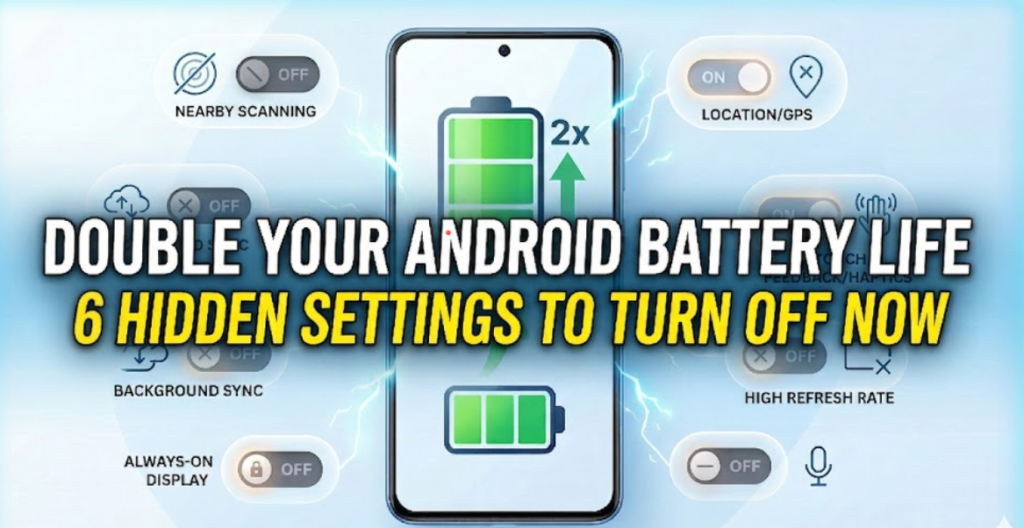
Did you know that your Android phone is likely wasting half of its battery on features you never even use? Most of these settings come enabled by default, meaning your phone is constantly searching, scanning, and “talking” to servers in your pocket.Today, we’re going to hunt down these battery vampires and shut them off for saving your Android battery life. By the end of this guide, you’ll see a significant jump in your daily screen-on time.
1. Disable “Nearby Device Scanning”
Your phone is socially anxious—it’s constantly looking for other devices to talk to. Even when your Bluetooth is off, the system often keeps a low-level scan running.
How to fix it: Go to Settings > Google > Devices & Sharing > Devices.
Turn off “Scan for nearby devices.”
Why? This feature constantly pings the radio to find things like smart displays or headphones. You can always connect manually when you actually need to.
2. Turn Off Background Connectivity Scans
There’s another layer of scanning hidden in your connection settings that many users overlook.
How to fix it: Go to Settings > Connections > More Connection Settings.
Find “Nearby device scanning” and toggle it OFF.
Bonus Tip: While you’re there, go into Printing and turn off the “Default Print Service.” Unless you are printing documents from your phone every hour, there is no reason for your phone to be constantly searching for a printer.
3. Opt-Out of Digital Wellbeing Data Tracking
Digital Wellbeing is great for seeing how much time you waste on social media, but the “tracking” itself requires constant monitoring of every app launch. If you don’t check these charts, turn them off to save CPU cycles.
How to fix it: Go to Settings > Digital Wellbeing & Parental Controls.
Tap the three dots in the top right corner and select “Manage your data” or “Deny usage access.”
Toggle off “Daily device usage.”
4. Audit Your App Notifications
Every time your screen lights up for a useless notification, your battery takes a hit. Some system apps send “reminders” that provide zero value.
How to fix it: Go to Settings > Notifications > App Notifications.
Go through the list and disable notifications for things like Gallery, Google Play Services, and System Intelligence.
Keep notifications on only for the essentials: WhatsApp, Messages, and Calls.
5. Tighten Your Location Permissions
This is the biggest battery killer of them all. Many apps demand “Always” access to your location, meaning they wake up your GPS antenna even when the phone is in your pocket.
How to fix it: Go to Settings > Location > App Permissions.
Change apps like Google, Maps, and Social Media from “Allow all the time” to “Allow only while using the app.”
Note: Don’t worry about the system warning—your phone will still work perfectly fine when you actually open the app to navigate.
6. Activate Battery Protection (The 90% Rule)
Charging your phone to 100% every single night puts massive chemical stress on the battery cells.
How to fix it: Go to Settings > Battery > Battery Protection.
Switch it to ON and select the “Maximum” or “Custom” setting.
Pro Tip: Set the limit to 90%. Stopping the charge just before the final “stress zone” can double the total lifespan of your battery over two years.
Summary Table: Quick Fixes
Feature
Action
Impact
Nearby Scanning
Turn OFF
High
Print Services
Turn OFF
Medium
Location
Change to “While Using”
Extreme
Charge Limit
Set to 90%
Long-term Health
You don’t need a bigger battery; you just need a smarter phone. By tweaking these six settings, you’re not just saving minutes of juice—you’re protecting the hardware for years to come and saving your Android Battery Life.
If you found this guide helpful, don’t forget to share it with your friends and be sure to check out our other content for more expert tech tips and optimizations!
Apple is expected to unveil the iPhone 16 series in the first week of September. A reliable source, Apple Hub, has compared the highly anticipated iPhone 16 Pro Max with its predecessor, the 15 Pro Max. With several upgrades, particularly in terms of the chip, will the 16 Pro Max...
One of the most annoying things at the airport is waiting by the baggage carousel while your suitcase never shows up. After a long wait, you have to go to the lost baggage desk, fill out forms, and get a vague “we’ll contact you” reply. It’s a common travel headache.Google...
Is it Still Worth Buying the iPhone 13 in 2024? In this article, we’ll discuss the current features, performance, and compare it to other options on the market to help you make an informed purchasing decision. The iPhone 13 has remained one of the popular smartphones since its release in...
Are you an iPhone owner? If your answer is yes, then this article is just for you! In this article, we will discuss 7 iPhone settings that you need to change. We will provide various tips that will be useful for different categories. So let’s get started! 1.Battery Settings Show...
The Honor Magic V Flip vs. Galaxy Z Flip 5 battle has made an impact on the market since its early days. Honor introduced its first vertical foldable smartphone, the Magic V Flip, in China. So how does it stack up against one of the most popular flip phones on...
From a technological point of view, this is the most advanced model that is equipped with impressive features of the brand. Incorporating new features like 5G connectivity, A13 chipset, and an enlarged display size. Apple has once again changed the vision of a smartphone rising above the expectations. We will investigate what...